App roles
SuperToolMake uses role based access control (RBAC) to decide who can see and do what inside a published app.
It's worth being clear about two different layers of access:
- Tenant access levels — Organisation admin, Creator, and End user — control what someone can do across the instance. For example, a Creator can access the app builder, whereas an End user can only access published apps. These are covered on the Users page.
- App roles — the subject of this page — control which screens and data an end user can see within a published app.
Built-in app roles
| Role | Who it applies to |
|---|---|
| Public | Unauthenticated visitors. Use this only for resources you want anyone to access without logging in. |
| Basic | Any logged-in end user. The default app role. |
| Admin | Full access within the app. |
Every screen, table, and query has a minimum role, and every end user is assigned a role. A user can access a resource only if their role meets or exceeds the resource's required role.
How roles inherit
Roles form an inheritance chain: a higher role inherits all the permissions of the roles below it. So an Admin can access everything a Basic user can, plus more. This means you generally assign the lowest role that should be able to access a resource, and everyone above it gets access automatically.
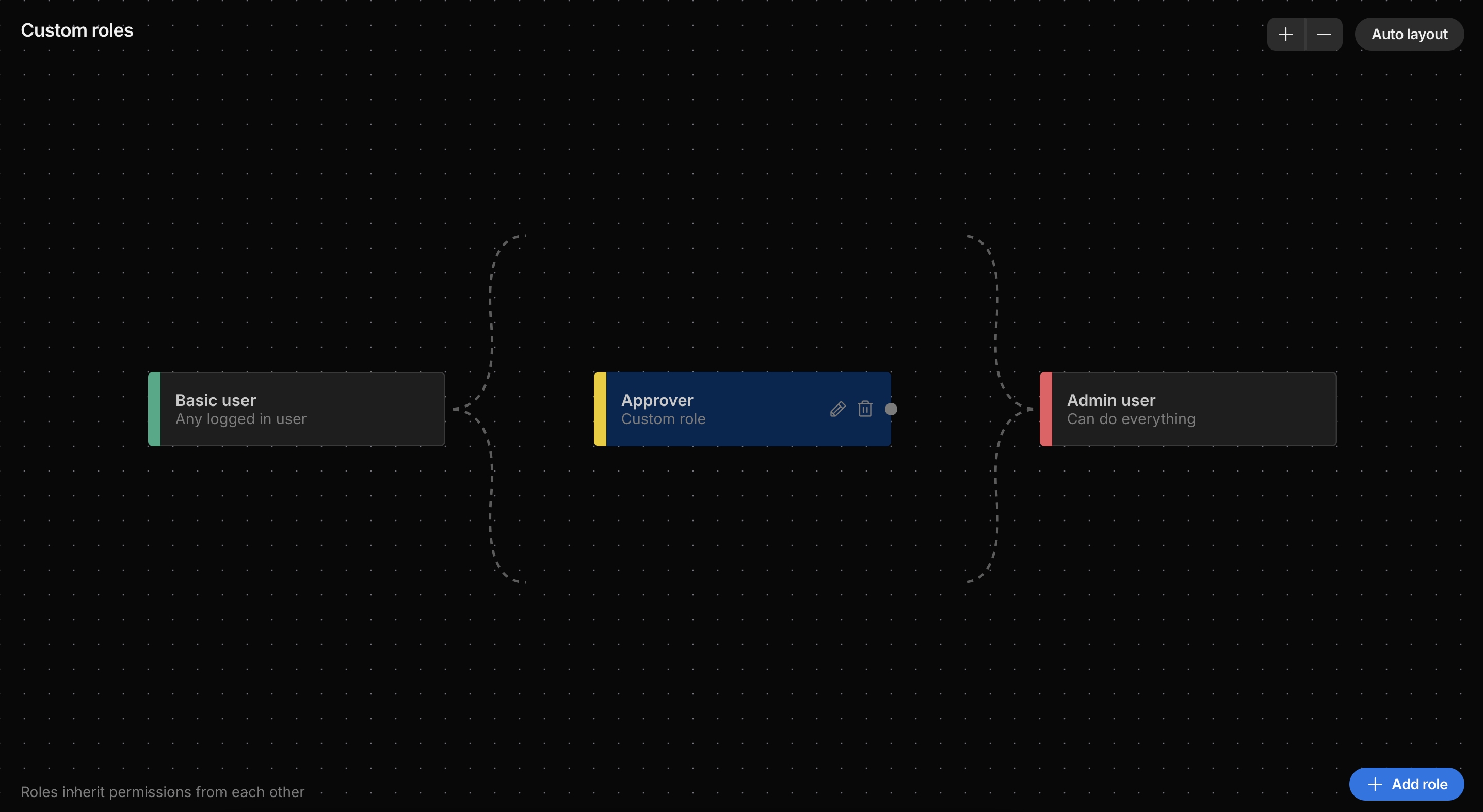
The graph above shows the built-in roles together with a custom role ("Approver") slotted into the inheritance chain.
Assigning roles to resources
You set the required role on each resource:
- Screens — each screen has an access role (shown as a coloured indicator in the screens panel).
- Tables and queries — each has a role controlling who can read or run it.
Assigning roles to users
Each end user is given a role. See Users for how to invite people and assign their access.
Custom roles
When the built-in roles (Public, Basic, Admin) don't capture the distinctions you need, you can define custom roles. A common example is an "Approver" role that sits between a basic user and an admin.
Open the Custom roles section from the workspace navigation (available to admins). Roles are shown as a graph, arranged from lowest access on the left to highest on the right, with arrows indicating inheritance.
To create a role:
- Select Add role.
- Give the role a name.
- Choose where it sits in the inheritance chain — which role it inherits from.
Because roles inherit permissions from each other, a custom role automatically gains everything the role below it can do, and you layer additional access on top. In the example above, the Approver role inherits from Basic and is inherited by Admin: approvers can do everything basic users can, and admins can do everything approvers can.
Select a role in the graph to edit its name and inheritance, or delete it. Use Auto layout to tidy up the graph, and the zoom controls to navigate larger hierarchies.
Once created, a custom role can be assigned to users and set as the required role on screens, tables, and queries.