File uploads
The File Upload component lets end users upload files directly from your app into an MinIO object store bucket.
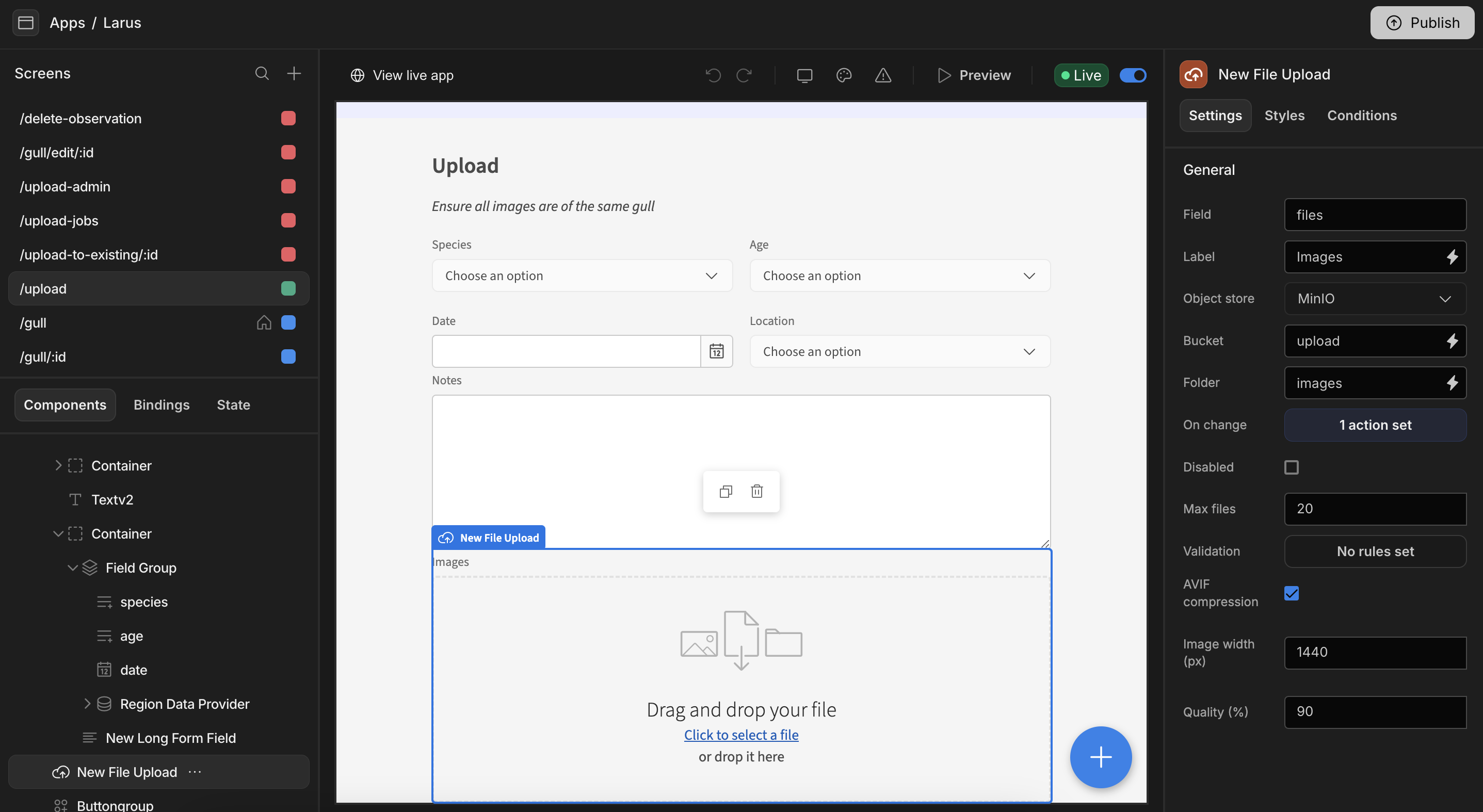
Configuration
Select a File Upload component to configure it in the settings panel:
| Setting | Description |
|---|---|
| Field | The field name this component maps to within the form. |
| Label | The label shown above the upload area. |
| Object store | The object store to upload to (e.g. MinIO). |
| Bucket | The bucket files are stored in. |
| Folder | The folder/prefix within the bucket. |
| On change | Actions to run after a file is uploaded. |
| Max files | The maximum number of files a user can upload. |
| Validation | Rules the uploaded files must satisfy. |
| Disabled | Whether the component is interactive. |
Image handling
When uploading images, the File Upload component can optimise them on the way in:
| Setting | Description |
|---|---|
| AVIF compression | Convert and compress images to the efficient AVIF format. |
| Image width (px) | Resize images to a maximum width. |
| Quality (%) | The compression quality to apply. |
These options reduce storage size and speed up load times for image-heavy apps.
End-user experience
End users see a drop zone where they can drag and drop files, or click to select them from their device. Uploaded files are stored in the configured bucket and can be referenced elsewhere in the app.